
Build a Looker Studio Dashboard from WordPress Leads in Google Sheets
Turn your WordPress form submissions into a live, client-ready Looker Studio dashboard. Charts by source, UTM, and campaign, refreshed in near real time with no scheduled-poll lag.
In This Guide
- What Does a Looker Studio Lead Dashboard Actually Show You?
- Why the Data Pipe Matters More Than the Charts
- How Should You Structure the Sheet for BI?
- How Do You Capture UTM and Campaign Data Automatically?
- How Do You Connect Google Sheets to Looker Studio?
- Which Charts Belong on a Lead Dashboard?
- How Often Does the Dashboard Refresh?
- How Do You Share the Dashboard With Clients?
- What Common Mistakes Break a Lead Dashboard?
- Can You Build the Same Dashboard With Excel?
- Frequently Asked Questions
What Does a Looker Studio Lead Dashboard Actually Show You?
A Looker Studio dashboard turns a flat lead spreadsheet into live charts: leads per day, breakdowns by traffic source, top UTM campaigns, and form-by-form conversion. Google Sheets backs over 10 million businesses (Google, 2025), and Looker Studio reads from it for free.
The value is a single screen that answers "where are leads coming from?" without anyone touching a spreadsheet. Marketing sees which campaign drove yesterday's demo requests. Sales sees volume by region. Clients see results without you exporting a thing.
The catch is the pipe feeding the sheet. A dashboard is only as fresh as its data, so how that sheet fills matters more than the charts on top. We'll cover the full path: WordPress form -> Sheet -> Looker Studio.
Why the Data Pipe Matters More Than the Charts
The pipe filling your sheet decides whether the dashboard is live or stale. Scheduled-sync tools poll on a timer; per-task tools meter usage. Zapier (2026) bills per task with overages at 1.25x, so a busy form gets expensive fast.
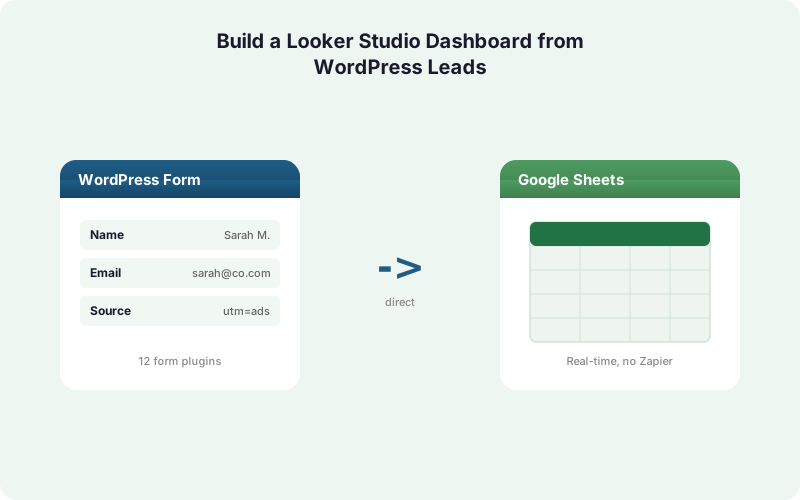
SheetLink Forms is different. It sends each WordPress submission straight to Google Sheets the moment the form is submitted, through a Google Apps Script webhook you deploy once. No middleware, no per-task fee, no polling interval. A lead lands in the sheet in 1 to 2 seconds.
That real-time write is what makes a Looker Studio dashboard genuinely useful. With a scheduled connector like Coupler.io, your sheet, and therefore your dashboard, lags behind the last poll. A lead that arrives at 9:05 won't show until the next sync window. In our experience, that gap quietly erodes trust in any dashboard built on top of it.
The pipe also handles failure. SheetLink queues submissions locally and retries with exponential backoff at 5 minutes, 30 minutes, and 2 hours, so a Sheets hiccup delays delivery instead of dropping a lead. See the complete WordPress-to-Sheets guide for the setup.
How Should You Structure the Sheet for BI?
Structure the sheet for analysis, not for reading. Looker Studio expects one row per lead and one column per field, with clean headers and consistent types. This matters because audited spreadsheets carry errors at high rates: up to 88% contain errors with a ~3.9% cell error rate (Panko, 2008/2016).
A few rules keep your data dashboard-ready.
One tab, one row per submission. Don't split leads across monthly tabs. Looker Studio connects to a single range, so a growing single tab is easier than stitching tabs together.
Dedicated columns for the dimensions you'll chart. Source, medium, campaign, form name, and a real timestamp each get their own column. Don't bury UTM data inside a notes field.
Consistent date formatting. Use a true date-time value, not text. Looker Studio's time-series charts depend on it.
SheetLink writes each form field to its own column automatically, which keeps the structure clean from the first submission. For deeper sheet-side analysis before the BI layer, our guide on Google Sheets dashboards with sparklines and pivots pairs well with this.
How Do You Capture UTM and Campaign Data Automatically?
Capture attribution at submission time, automatically, so every lead row already carries its source. SheetLink reads UTM parameters and click IDs (GCLID, fbclid, msclkid) from the visitor's session and writes them as columns alongside the form fields. No hidden-field gymnastics required.
This is the single biggest unlock for a lead dashboard. Without source data, your charts can only show "how many leads," not "which channel drove them." With it, you get leads by source, cost-per-lead by campaign, and a clear view of which ad clicks turned into form fills.
Map each captured parameter to its own sheet column: utm_source, utm_medium, utm_campaign, and gclid. In Looker Studio these become dimensions you can group, filter, and slice. Our deep dive on UTM and GCLID marketing attribution for WordPress forms walks through the capture logic in detail.
One practical tip we've found: keep a fallback like "direct/none" for sessions with no UTM, so blank cells never break a pie chart's totals.
How Do You Connect Google Sheets to Looker Studio?
Connecting is fast once your sheet is clean. Looker Studio is free for any Google account, and the Sheets connector is built in. Google Sheets holds up to 10 million cells per spreadsheet (Google, 2022), far more than most lead sheets will ever need.
The steps are short.
1. Open Looker Studio and create a blank report. Choose "Google Sheets" as the data source.
2. Pick your spreadsheet and tab. Point it at the single lead tab. Enable "Use first row as headers" so your column names become field names.
3. Check field types. Confirm the timestamp is a Date field and your UTM columns are text dimensions. Fix any that Looker Studio guessed wrong.
4. Build charts. Add a time-series chart on your date field, a pie chart on utm_source, and a bar chart on utm_campaign.
Because SheetLink writes leads in real time, the sheet behind this report is always current up to Looker Studio's own refresh, covered next.
Which Charts Belong on a Lead Dashboard?
Build the dashboard around the questions stakeholders actually ask. With WordPress powering roughly 43% of all websites (W3Techs, 2026), most lead dashboards share the same core needs: volume, source, and campaign performance over time.
Four charts cover the majority of cases.
Leads over time. A time-series line on your timestamp column, grouped by day or week. This is your headline trend.
Leads by source. A pie or donut on utm_source, showing the share from paid, organic, social, and referral.
Top campaigns. A horizontal bar chart on utm_campaign, sorted by lead count.
Leads by form. A bar chart on form name, so you know whether the demo form or the contact form is doing the work.
Add a scorecard for total leads and a date-range control so viewers can filter to last 7 or 30 days. Resist the urge to add more. A focused dashboard gets read; a cluttered one gets ignored. That's a lesson worth more than any extra chart.
How Often Does the Dashboard Refresh?
Looker Studio caches Sheets data and refreshes on a cadence you set, defaulting to roughly every 15 minutes for a Sheets source. Viewers can also force a manual refresh from the report menu. The underlying sheet itself is always live because SheetLink writes each lead within 1 to 2 seconds.
This two-layer freshness is worth understanding. Your sheet is real-time; Looker Studio's view of it is near-real-time, bounded by the cache interval. For lead dashboards that's ideal: the data is never more than a few minutes behind, and the cache keeps the report fast.
Contrast this with a scheduled-sync tool feeding the sheet. There you stack two delays: the connector's poll interval plus Looker Studio's cache. A 60-minute poll plus a 15-minute cache can leave a lead invisible for over an hour. With a real-time pipe, you only ever pay the cache delay.
If you need tighter freshness, lower the Looker Studio data freshness setting and add a visible "last refreshed" timestamp so viewers trust what they see.
What Common Mistakes Break a Lead Dashboard?
Most broken dashboards trace back to messy source data, not Looker Studio itself. Given that up to 88% of audited spreadsheets contain errors (Panko, 2016), the sheet is usually the weak link. Clean inputs prevent most problems before they start.
Watch for these specific traps.
Mixed date formats. Text dates and real dates in one column break time-series charts. Enforce a single date-time format at the source.
Duplicate leads. A double-submit inflates every count. Deduplicate before the dashboard reads the sheet; our guide on deduplicating leads in Google Sheets covers automatic methods.
Blank UTM cells. Missing source values quietly distort share-of-source charts. Default them to "direct/none."
Manual edits to the data tab. Anyone hand-editing the lead tab risks shifting columns and breaking the connector. Keep analysis in a separate tab and let the dashboard read only the clean lead tab.
The common thread: protect the ingestion layer. A real-time, structured write keeps the sheet trustworthy so the dashboard stays honest.
Can You Build the Same Dashboard With Excel?
Yes, if your stack lives in Microsoft 365. SheetLink can deliver the same WordPress leads to an Excel Online workbook on OneDrive in real time via Microsoft Graph, and Power BI reads Excel the way Looker Studio reads Sheets. The choice comes down to where your team already works.
SheetLink offers two Excel modes. The free mirror mode delivers one rule to Google Sheets and Excel at the same time, handy if marketing wants Looker Studio while finance wants Power BI. The paid Excel Primary mode ($29/mo) makes Excel the sole destination, with no Google account in the loop at all.
For a Looker Studio dashboard specifically, Google Sheets is the simpler path: both tools are free and live in the same Google account. If you'd rather compare the two backends head to head, see Excel Online vs Google Sheets for WordPress form data or the Excel Online destination overview. Either way, the ingestion layer stays the same: a direct, real-time write from your forms.
| Pipe to the sheet | Lead latency | Per-task fee | Dashboard freshness | |
|---|---|---|---|---|
| SheetLink (direct, real time) | Direct webhook | 1-2 seconds | None | Cache delay only |
| Zapier (per-task) | Polled/triggered | 1-15 minutes | Per task, 1.25x overage | Poll + cache delay |
| Coupler.io (scheduled) | Scheduled sync | Poll interval | Plan-based | Poll + cache delay |
Frequently Asked Questions
Is Looker Studio free to use with Google Sheets?
Yes. Looker Studio is free with any Google account, and the Google Sheets connector is built in at no cost. You only pay for the data pipe feeding the sheet, and SheetLink's Google Sheets delivery is free via a Google Apps Script webhook you deploy once.
How fresh is the data in a Looker Studio lead dashboard?
The sheet updates within 1 to 2 seconds of each WordPress submission with SheetLink. Looker Studio then caches and refreshes its view roughly every 15 minutes by default, so your dashboard is never more than a few minutes behind the latest lead.
Do I need Zapier to connect WordPress forms to the dashboard?
No. SheetLink Forms writes submissions directly to Google Sheets with no middleware. Zapier bills per task with overages at 1.25x per its 2026 pricing, while SheetLink's Sheets delivery has no per-task fee and sends data in real time, not on a poll.
How do I get UTM and campaign data into the dashboard?
SheetLink automatically captures UTM parameters and click IDs (GCLID, fbclid, msclkid) at submission time and writes them as columns. Map utm_source, utm_medium, and utm_campaign to their own columns, then use them as dimensions in Looker Studio charts for source and campaign breakdowns.
How should I structure the Google Sheet for Looker Studio?
Use one tab with one row per lead and one column per field, including a real date-time column and separate UTM columns. Clean structure matters: up to 88% of audited spreadsheets contain errors per Panko's research, and messy source data breaks dashboard charts.
Can clients view the dashboard without a Google account?
Yes. Share the Looker Studio report with a view-only link set to "anyone with the link can view" and clients open it in any browser without logging in. You can also email scheduled PDF snapshots or embed the report directly in a client portal.
Will a large lead sheet slow down the dashboard?
Rarely. Google Sheets supports up to 10 million cells per spreadsheet per Google's 2022 update, far more than most lead sheets reach. Looker Studio's caching also keeps reports fast. If volume grows, archive old leads to a separate tab to keep the live range lean.
Can I build the same dashboard from Excel instead of Sheets?
Yes. SheetLink can deliver leads to an Excel Online workbook in real time, and Power BI reads Excel like Looker Studio reads Sheets. Free mirror mode feeds both at once; Excel Primary mode ($29/mo) makes Excel the sole destination with no Google account needed.
Feed Your Dashboard in Real Time
SheetLink Forms writes every WordPress lead to Google Sheets the moment it's submitted. No Zapier, no per-task fees, no poll lag. Your Looker Studio dashboard stays live.