
Conditional Routing: Send WordPress Form Submissions to Different Sheets Based on Answers
Enterprise leads to Sales. SMB leads to Marketing. Support requests to the help desk. One form, three sheets, zero manual triage.
When One Sheet Isn't Enough
A single contact form on a B2B SaaS site might receive five different kinds of submissions: enterprise sales inquiries, SMB sales inquiries, support requests, partnership requests, and press inquiries. Each goes to a different team.
Without routing, all five land in the same sheet and someone has to triage them daily. That triage step is slow, error-prone, and the leads that need fast follow-up (enterprise sales) get the same attention as low-priority asks (general feedback).
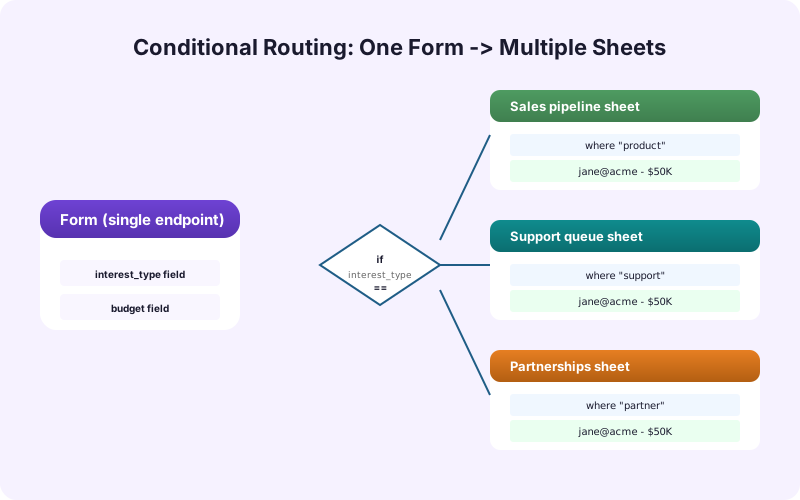
Conditional routing solves this. The form asks "What's this about?" and the answer routes the submission to the right destination automatically. Sales teams see only sales leads. Support sees only support requests. The form looks the same to the user but the data goes to different places.
The Routing Pattern
A conditional routing setup has three pieces.
The router field. A form field whose value determines the destination. Usually a dropdown ("Inquiry Type") or a hidden field set by JavaScript based on the page URL or referrer.
The routing rules. A list of conditions and destinations. "If Inquiry Type = Enterprise Sales then send to Enterprise Sales sheet. If Inquiry Type = Support then send to Support sheet."
The fallback. A catch-all destination for submissions that don't match any rule. Critical to avoid losing data when someone enters an unexpected value or a new option is added without updating routing.
SheetLink Forms' Multi-Node Routing add-on implements all three with a visual rule builder.
Designing Good Routing Rules
A routing ruleset is a small piece of business logic. Like all logic, it can be written cleanly or messily.
Good rules are explicit, exclusive, and ordered. Explicit: every rule states exactly what condition triggers it. No "default" cases mixed in. Exclusive: no submission matches two rules. Ordered: if rules can overlap, the first match wins.
A bad rule: "If Company > 100 employees AND budget > $10K send to Enterprise Sales." A good rule: "If Company employees range = '500-1000' OR '1001+' AND Budget = 'over $50,000' then send to Enterprise Sales."
The difference: the bad rule depends on data that may not be there. The good rule uses dropdown values that are guaranteed to be present and unambiguous. Whenever possible, route on dropdowns or radio buttons - free-text fields are too unreliable for routing.
Routing on Multiple Attributes
Many real-world routing decisions need more than one field. "Enterprise leads from EU" might need to route to a different sheet than "Enterprise leads from North America" for compliance reasons.
Multi-attribute rules combine fields with AND/OR logic. SheetLink Forms supports nested groups, so you can build "(Industry = Healthcare AND Region = EU) OR (Industry = Government)" - a typical compliance routing rule for a company that handles healthcare in EU specially and government anywhere similarly.
Keep it simple. If you find yourself building 7-level nested rules, your routing logic is probably wrong. Most real cases have 3-5 destinations and 1-2 attributes per rule.
Fallback Handling
Fallback is the destination that catches everything that doesn't match a rule. It's the most important destination because it's where you find out your routing is incomplete.
The fallback sheet should be reviewed weekly. If it has 50 rows, your rules need updating. If it has 5 rows from one new value, add a rule.
Don't skip the fallback. The alternative - dropping unmatched submissions silently - means you lose data without knowing. Make the fallback a real sheet that gets attention.
Handling Form Changes
Forms evolve. New dropdown options get added. Field names change. Routing rules can break silently when forms change.
The right hygiene:
- When you add a new dropdown option, decide its routing destination at the same time. Don't ship the new option without updating rules. - When you rename a field, search routing rules for the old name and update. - Run a monthly review of the fallback sheet to catch unmatched submissions.
SheetLink Forms' rule editor flags rules that reference fields no longer on the form. This catches the "renamed a field, forgot to update routing" case.
Compliance Routing
Compliance is a common reason to route. EU customer data needs to be stored separately from US data. Healthcare data needs to be in a HIPAA-compliant destination. Legal-hold data goes to a locked-down sheet.
For these use cases, the routing rules become part of your compliance documentation. Keep a record of: what rule applies, what data triggers it, what destination is used, who has access.
Don't bury compliance routing in a generic rule list. Document it explicitly: "Healthcare data routes to the locked-down HIPAA sheet (audit trail required) per Compliance Policy 2.4."
This is where the difference between SaaS routing tools and on-premise control matters. GDPR-compliant form workflows require destination control that not every tool provides.
Routing Speed and Reliability
A routing decision adds milliseconds to the submission flow, not seconds. The user never notices.
For reliability, the routing layer should evaluate rules in WordPress before posting to any destination. If the rule evaluation fails (a referenced field is missing), the system should log the error and fall back to the catch-all destination, not lose the submission.
SheetLink Forms evaluates rules synchronously in WordPress and only posts to one destination per rule match. If you need multi-destination routing (one submission to multiple sheets), that's a separate setting layered on top of routing.
AI-Assisted Routing
A modern wrinkle: rules can't cover everything. A free-text "How can we help you?" field is too varied for a rules-based router.
AI classification handles this. Pass the free-text field to a model, get back a category (Sales, Support, Partnership, Other), use that as the routing key. SheetLink Forms' AI Lead Scoring add-on includes intent classification.
The right pattern is hybrid. Use rules for clear cases (dropdown values). Use AI for ambiguous cases (free text). The AI runs only when the rules don't match - keeping costs down and behavior predictable.
Recap
Conditional routing is the right answer when one form serves multiple teams. Build rules that are explicit, exclusive, and ordered. Always have a fallback destination. Review the fallback weekly to catch missed cases. Document compliance-driven routing explicitly.
For most cases, dropdown-based rules cover 90% of routing. AI classification handles the long tail of free-text cases. The result is a form that looks simple to users but routes submissions to the right team automatically.
Routing logic should live in version control if you can swing it. Even if the rules are configured in a UI, export them periodically (SheetLink Forms supports JSON export of rule sets) and commit the file to your team's repo. When a rule breaks something, you have history to roll back to. When you onboard a new admin, the rule history is the documentation. Few teams do this and it consistently pays off when something goes wrong.
Frequently Asked Questions
Can I send WordPress form submissions to different Google Sheets based on field values?
Yes. SheetLink Forms' Multi-Node Routing add-on supports rule-based routing where field values determine the destination sheet. Define rules like "if Inquiry Type = Enterprise Sales send to the Enterprise Sales sheet."
What happens if a submission doesn't match any rule?
It goes to the fallback destination. Always have a fallback - never drop unmatched submissions silently. Review the fallback weekly to catch cases your rules don't cover.
Can I route on multiple fields?
Yes. Rules support AND/OR combinations across multiple fields. For example, "Industry = Healthcare AND Region = EU" can route to a separate compliance sheet.
Should I route on dropdown values or free text?
Dropdowns whenever possible. Free text is too unreliable for rules-based routing. For free-text routing, layer in AI classification - SheetLink Forms' AI Lead Scoring add-on handles intent classification on free text.
How do I handle compliance-driven routing?
Document the rule explicitly as part of your compliance documentation. Specify what data triggers it, what destination is used, and who has access. Don't bury compliance routing in a generic rule list.
What if a form field gets renamed?
SheetLink Forms' rule editor flags rules that reference fields no longer on the form, so you can update them. Run a periodic check to catch any drift.
Will conditional routing slow down form submission?
No. Rule evaluation adds milliseconds, not seconds. The user sees the same instant success message as a non-routed form.
Can the same submission go to multiple destinations?
Yes, but that's multi-destination routing, not conditional routing. Multi-CRM Routing (multi-destination writes) is a separate setting in SheetLink Forms. You can combine conditional routing with multi-destination routing: "If Enterprise, send to Enterprise Sales AND Master Audit sheets."
Should I version-control my routing rules?
Yes if possible. SheetLink Forms supports JSON export of rule sets. Commit the export to your team's repo periodically. You get rollback capability and onboarding documentation for free, and it pays off the first time a rule breaks something unexpectedly.
Route Submissions to the Right Sheet
Rule-based routing, AI-assisted classification, fallback handling. SheetLink Forms' Multi-Node Routing add-on does it all.