
The QUERY Function for WordPress Lead Reports
Once your WordPress form submissions land in Google Sheets in real time, the QUERY function turns that raw list into filtered, grouped, and counted lead reports - no pivot tables, no plugins, no copy-paste.
In This Guide
- Why Use QUERY for WordPress Lead Reports?
- How Do You Get WordPress Leads Into Sheets Automatically?
- What Is the Basic QUERY Syntax?
- How Do You Filter Leads by Source or Form?
- How Do You Filter Leads by Date Range?
- How Do You Group Leads by UTM Campaign?
- How Do You Count Leads by Status?
- How Do You Build a Self-Updating Summary Tab?
- How Do You Keep the Source Data Clean for QUERY?
- QUERY vs FILTER vs Pivot Tables: Which Should You Use?
- Putting It All Together
- Frequently Asked Questions
Why Use QUERY for WordPress Lead Reports?
The QUERY function lets you write SQL-style questions against a sheet of leads and get a live, auto-updating answer in one cell. It filters, sorts, groups, and counts without pivot tables or manual sorting. With WordPress powering roughly 43% of all websites (W3Techs, 2026), most form data already flows somewhere - QUERY makes it readable.
Here is the catch most tutorials skip. QUERY only helps if your leads are already sitting in the sheet, cleanly, in rows and columns. That is the ingestion problem. We solve it first, then we slice.
Think of QUERY as the reporting layer that sits on top of a tab your forms fill automatically. The form writes the row; QUERY reads the rows and answers the question. Want to see who needs this most? Sales teams drowning in a flat 4,000-row submission log.
How Do You Get WordPress Leads Into Sheets Automatically?
Before any formula works, every submission needs to reach the sheet as a clean row, in real time, without manual export. Google Sheets supports up to 10,000,000 cells per spreadsheet (Google Workspace Updates, 2022), so capacity is rarely the limit - getting data in cleanly is.
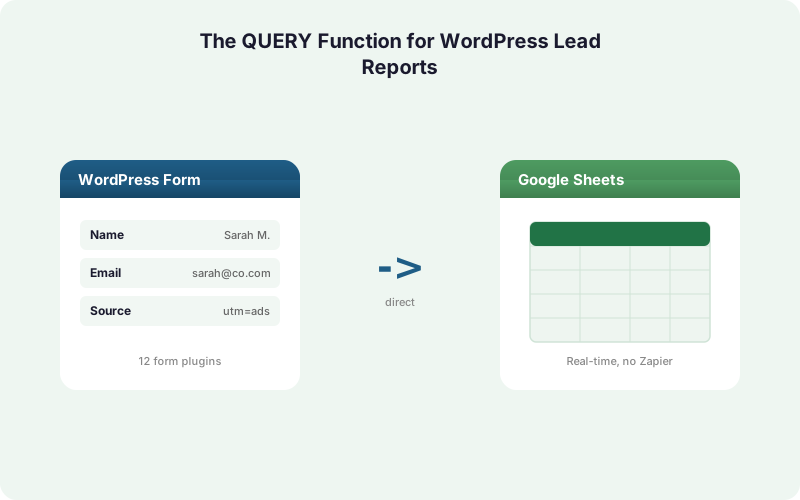
SheetLink Forms sends each WordPress submission straight to a Google Sheet through a Google Apps Script webhook you deploy once. There is no Zapier, no Make, no per-task fee. The submission writes within a second or two of the visitor hitting submit.
This matters for reporting. A direct, real-time pipe means your QUERY reports reflect what happened thirty seconds ago, not what a scheduled sync pulled at midnight. Our full WordPress forms to Google Sheets guide walks the setup; the setup docs cover the webhook step. Once rows arrive automatically, every recipe below stays current on its own.
What Is the Basic QUERY Syntax?
The QUERY function takes three arguments: the data range, a query string written in Google's Query Language, and an optional header-row count. The pattern is =QUERY(range, "select ...", 1). Spreadsheet research underscores why a single audited formula beats manual sorting: up to 88% of audited spreadsheets contain errors (Panko, 2008).
Here is a starter. Say your leads land on a tab named Leads with columns A through H. To pull every row, you write =QUERY(Leads!A:H, "select *", 1).
Columns are referenced by letter inside the query string, not by header name. So select A, C, E returns the first, third, and fifth columns. The trailing 1 tells QUERY the first row is a header so it is not treated as data. Keep that header row clean and you avoid a whole category of error.
How Do You Filter Leads by Source or Form?
Use a where clause to return only the rows that match a condition, such as a specific form name or traffic source. This is the single most useful QUERY pattern for lead reports. Because spreadsheets carry an average cell error rate near 3.9% (Panko, 2016), replacing manual filtering with one formula cuts mistakes sharply.
If column B holds the form name, this returns only demo requests: =QUERY(Leads!A:H, "select * where B = 'Demo Request'", 1).
Text values go in single quotes; numbers do not. To filter by traffic source in column F, swap the condition: where F = 'google'. Combine conditions with and and or, like where B = 'Demo Request' and F = 'google'.
SheetLink captures UTM and click-ID data automatically, so a source column is usually already there. We cover that capture in depth in our UTM and GCLID attribution post.
How Do You Filter Leads by Date Range?
Filter by date using the where clause with a date literal, which lets you build rolling reports like "leads this month" without touching the formula daily. Date handling trips up many users, and with up to 88% of audited spreadsheets containing errors (Panko, 2008), getting the literal format right matters.
Assume column A holds a timestamp. To get leads since the start of May 2026, you write =QUERY(Leads!A:H, "select * where A >= date '2026-05-01'", 1).
The date string must use the yyyy-mm-dd format and sit inside single quotes after the keyword date. For a true rolling window, build the date string from TODAY() using concatenation, then feed it into the query text.
Make sure your timestamp column is a real date value, not text. SheetLink writes a proper timestamp on each row, so date filters work right out of the box.
How Do You Group Leads by UTM Campaign?
Use group by together with an aggregate like count() to roll leads up by campaign, source, or medium - the spreadsheet equivalent of a pivot table in one cell. Marketing attribution lives or dies on clean grouping, and since up to 88% of audited spreadsheets carry errors (Panko, 2008), one formula beats fragile manual tallies.
If column G holds the UTM campaign, this counts leads per campaign: =QUERY(Leads!A:H, "select G, count(A) group by G order by count(A) desc", 1).
The group by column must also appear in the select list. The order by count(A) desc sorts your biggest campaigns to the top. Add a label clause to rename the count column for a cleaner report.
This is where automatic capture pays off. Because SheetLink records the campaign on every submission, your campaign report never has blank rows from forgotten tracking parameters.
How Do You Count Leads by Status?
Counting by a status column - new, contacted, qualified, won - gives a live pipeline snapshot that updates the moment someone changes a status cell. This is the report sales managers check first. Spreadsheets remain the default lead store because many SMBs still run leads in spreadsheets rather than a formal CRM.
If column H holds the status, this returns the count of each: =QUERY(Leads!A:H, "select H, count(A) group by H", 1).
For a single number, such as how many leads are still new, add a filter: =QUERY(Leads!A:H, "select count(A) where H = 'New' label count(A) ''", 1). The empty label strips the header so you get a bare number suitable for a dashboard tile.
If you want this data flowing to a real CRM too, the Google Sheets CRM for WordPress guide shows how the same rows can power both a sheet and HubSpot or Salesforce.
How Do You Build a Self-Updating Summary Tab?
Create a separate tab and stack several QUERY formulas, each pointing back at the raw Leads tab, so the summary recalculates automatically as new submissions arrive. Because Google Sheets handles up to 10,000,000 cells (Google Workspace Updates, 2022), a summary tab scales to years of leads.
Keep the raw data tab untouched. Add a tab called Summary. In one cell, drop the leads-by-source QUERY; a few rows below, the campaign rollup; below that, the status counts.
Each formula reads live from Leads, so the summary never goes stale. No refresh button, no script. When SheetLink writes a new row, every QUERY on the summary tab updates within the same recalculation.
To turn these tables into charts and sparklines, our lead-data dashboards guide builds a full visual dashboard on top of exactly this structure.
How Do You Keep the Source Data Clean for QUERY?
Clean source data is what separates a reliable QUERY report from a misleading one. Mixed types, stray text in number columns, and duplicate rows all break aggregates silently. With an average cell error rate near 3.9% (Panko, 2016), prevention beats correction.
Four habits keep things tidy. Keep one clean header row and never merge cells. Make sure date and number columns hold real values, not text. Avoid editing the raw tab by hand - do reporting on a separate tab. Deduplicate at the source so counts stay honest.
SheetLink helps on three fronts. It writes consistent column order on every submission, stamps a real timestamp, and its automatic deduplication stops repeat submissions from inflating your counts. A built-in retry queue with exponential backoff also means no half-written rows from a dropped connection.
QUERY vs FILTER vs Pivot Tables: Which Should You Use?
Pick QUERY when you need filtering, grouping, and sorting in one formula; pick FILTER for simple row-level filtering; pick a pivot table for point-and-click exploration. All three read the same auto-filled lead tab, so the choice is about the report, not the data pipe.
The comparison below summarizes when each tool fits a WordPress lead report. In practice, most teams use QUERY for their summary tab and a pivot table for ad-hoc digging.
The one rule that holds across all three: garbage in, garbage out. None of them fixes dirty source rows, which is why the ingestion and cleaning steps above come first. If your leads also need to live in Excel, the same clean rows can mirror to a OneDrive workbook - see WordPress form to Excel and Excel Online vs Google Sheets for form data.
Putting It All Together
The workflow is a simple pipeline. WordPress form submits, SheetLink writes a clean row to your Leads tab in real time, and a stack of QUERY formulas on a Summary tab turns those rows into live reports. With WordPress running about 43% of the web (W3Techs, 2026), this pattern fits most sites.
Start small. Get leads flowing into a single tab, then add one QUERY at a time: filter by source, then by date, then group by campaign, then count by status.
The payoff is a reporting layer that never needs a manual export or a scheduled sync. Because the data arrives directly and instantly, your numbers are always current. Compare that path against middleware in our Make vs Zapier vs direct plugin cost breakdown, then check pricing to start.
| Tool | Best For | Auto-Updates | Group + Count | Learning Curve |
|---|---|---|---|---|
| QUERY | Live summary tabs | Yes | Yes | Moderate (SQL-style) |
| FILTER | Simple row filtering | Yes | No | Low |
| Pivot Table | Ad-hoc exploration | On refresh | Yes | Low (point-and-click) |
Frequently Asked Questions
What does the QUERY function do in Google Sheets?
The QUERY function runs SQL-style commands against a range of cells, letting you filter, sort, group, and count data with one formula. For WordPress lead reports, it turns a raw submission log into live, auto-updating views without pivot tables or manual sorting.
Do I need a plugin to use QUERY on my form data?
No, QUERY is built into Google Sheets. You do need the form data in the sheet first. SheetLink Forms delivers each WordPress submission as a clean row in real time, which is the structure QUERY needs to produce reliable reports.
How do I reference columns in a QUERY string?
Reference columns by their letter inside the query text, not by header name. So select A, C, F returns those three columns. The header name only labels the output. Keep one clean header row so the trailing header argument works correctly.
Why does my QUERY date filter return nothing?
Usually the timestamp column holds text, not a real date, or the date literal uses the wrong format. Use date 'yyyy-mm-dd' in single quotes, and confirm the column is a true date value. SheetLink writes a proper timestamp on every row to avoid this.
Can QUERY group leads by UTM campaign?
Yes. Use group by with count(), putting the campaign column in both the select list and the group clause. SheetLink captures UTM parameters and click IDs automatically, so the campaign column is already populated and your rollup has no blank rows.
How is QUERY different from a pivot table?
QUERY lives in a single formula that recalculates automatically as rows arrive, ideal for a fixed summary tab. A pivot table is a separate, point-and-click object better for ad-hoc exploration. Many teams use QUERY for live reports and pivots for digging into questions.
Will my QUERY reports stay current automatically?
Yes, as long as the data arrives automatically. Because SheetLink writes each submission directly and instantly, every QUERY reading that tab updates in the same recalculation. There is no refresh button and no scheduled-poll lag like scheduled-sync tools introduce.
Does this work with Excel instead of Google Sheets?
QUERY is a Google Sheets function, but SheetLink can deliver the same clean rows to an Excel Online workbook on OneDrive. You would use Excel formulas or tables there. See the WordPress form to Excel page to set up the Excel destination.
Fill Your Lead Sheet Automatically, Then Let QUERY Do the Reporting
SheetLink Forms delivers every WordPress submission to Google Sheets in real time - no Zapier, no per-task fees. Clean rows in, live QUERY reports out.