
Auto-Segment and Tag WordPress Leads in Google Sheets
Leads land in your Sheet. Now make the Sheet sort them for you. Tag by source, value, geography, and campaign automatically - with formulas and conditional routing, in real time, no middleware.
In This Guide
- What Does Auto-Segmenting WordPress Leads Actually Mean?
- How Do Leads Get Into the Sheet in the First Place?
- How Do You Tag Leads by Form Source?
- How Do You Score and Tag Leads by Value?
- How Do You Segment Leads by Geography?
- How Do You Tag Leads by Marketing Campaign?
- How Do You Route High-Value Leads to a Separate Tab?
- Keeping the Tagging Real-Time and Reliable
- Putting the Full Segmentation Stack Together
- Recap: Your Auto-Tagging Checklist
- Frequently Asked Questions
What Does Auto-Segmenting WordPress Leads Actually Mean?
Auto-segmenting means your Google Sheet labels every lead the moment it arrives - by source, value, location, or campaign - without you touching a cell. WordPress powers about 43% of all websites (W3Techs, 2026), so most lead forms live there. The real bottleneck isn't capture, it's sorting.
A raw lead list is just rows. A segmented list tells you which leads to call first, which campaign paid off, and which region is heating up.
This guide builds that system in two layers. First, the ingestion pipe that fills the Sheet in real time. Second, the tagging logic - spreadsheet formulas and conditional routing that classify each row as it lands.
How Do Leads Get Into the Sheet in the First Place?
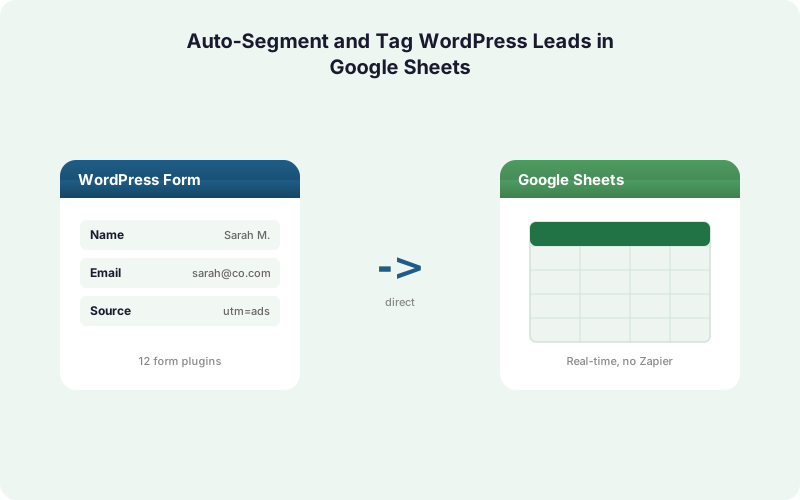
Tagging is worthless if the data arrives late or in the wrong column. SheetLink Forms writes each WordPress submission straight to Google Sheets in 1-2 seconds through a Google Apps Script webhook you deploy once. No Zapier, no per-task fees. Compare that to Zapier's metered model (2026), where the free tier caps at 100 tasks/month.
The pipe matters because real-time tagging needs real-time data. A scheduled sync that polls every 15 minutes breaks the moment you want to route a hot lead to a tab and trigger a follow-up.
Map your form fields to columns once. Email lands in column C, budget in column F, UTM source in column J. From there, every formula and routing rule has a stable target to read. See the Google Sheets setup guide for the one-time deploy.
SheetLink also captures UTM parameters and click IDs (GCLID, fbclid, msclkid) automatically, so campaign data arrives without extra form fields. That feeds the campaign-tagging logic later.
How Do You Tag Leads by Form Source?
Source tagging answers a simple question: which form did this lead come from? The cleanest method is to set a hidden source value at ingestion, but you can also derive it inside the Sheet. With WordPress running roughly 60% of CMS-built sites (W3Techs, 2026), most teams run several forms at once and need to tell them apart.
If you write the form name to its own column, a single header formula labels every row:
=ARRAYFORMULA(IF(A2:A="", "", IFS(B2:B="contact", "General", B2:B="demo", "Sales", B2:B="newsletter", "Nurture", TRUE, "Other")))
The ARRAYFORMULA wrapper applies the rule to the whole column, so new rows tag themselves the instant SheetLink writes them. The IFS function checks each condition in order and stops at the first match.
In our experience, naming forms cleanly at the source saves more time than any formula. A form called "demo-request-v2" is self-documenting; "Form 14" is not.
How Do You Score and Tag Leads by Value?
Value tagging ranks leads so your team works the best ones first. Spreadsheets are reliable for this when built carefully, but be deliberate: research by Panko found that up to 88% of audited spreadsheets contain errors (Panko, 2008), with an average cell error rate near 3.9% (Panko, 2016). A single tagging formula in a header cell is far safer than copy-pasted logic across thousands of rows.
Tier leads by a budget field with nested logic:
=ARRAYFORMULA(IF(F2:F="", "", IFS(F2:F>=10000, "Hot", F2:F>=2000, "Warm", TRUE, "Cold")))
The rule reads top to bottom and assigns the first tier that matches. Anything under 2,000 falls through to "Cold."
Keep value logic in one place. When the threshold for "Hot" changes, you edit a single formula instead of hunting through pasted cells. That discipline is what keeps the error rate down.
Want the model to learn from outcomes instead of fixed thresholds? The AI Lead Scoring add-on scores submissions before they hit the Sheet.
How Do You Segment Leads by Geography?
Geographic tagging groups leads by region so you can route them to the right rep or time zone. Google Sheets handles up to 10,000,000 cells per spreadsheet (Google Workspace Updates, 2022), so even high-volume lead lists have room for several derived tag columns.
If you collect a country or state field, REGEXMATCH buckets messy text input cleanly:
=ARRAYFORMULA(IF(H2:H="", "", IF(REGEXMATCH(H2:H, "(?i)CA|TX|NY|FL"), "Priority State", "Standard")))
The (?i) flag makes the match case-insensitive, so "ca", "CA", and "California" all behave predictably depending on your pattern.
For region grouping by country, combine REGEXMATCH with IFS to assign "NA", "EMEA", or "APAC" tags. We've found regex beats long OR chains - one pattern handles a dozen variations and stays readable.
A quick gut check: messy free-text location fields cause most tagging misfires. A dropdown on the WordPress form fixes the input quality before any formula runs.
How Do You Tag Leads by Marketing Campaign?
Campaign tagging connects each lead to the ad, email, or post that produced it - the foundation of attribution. SheetLink captures UTM parameters and click IDs (GCLID, fbclid, msclkid) automatically, writing them to columns without extra form fields. That means the campaign data is already in the Sheet, ready to tag.
Classify the traffic source from a UTM column:
=ARRAYFORMULA(IF(J2:J="", "Direct", IFS(REGEXMATCH(J2:J, "(?i)google|cpc"), "Paid Search", REGEXMATCH(J2:J, "(?i)facebook|meta"), "Paid Social", REGEXMATCH(J2:J, "(?i)newsletter|email"), "Email", TRUE, "Other")))
Now every lead carries a clean channel label the moment it lands. Pair this with a pivot table and you have spend-to-lead reporting that updates live.
For a deeper attribution build, the UTM and GCLID attribution guide shows how to tie click IDs back to ad platforms. The tags here are the first step toward that full picture.
How Do You Route High-Value Leads to a Separate Tab?
Routing physically separates leads so your best ones get their own workspace. There are two ways to do it, and they serve different needs. Formulas pull matching rows into a view; conditional routing writes the lead to a different destination at ingestion. With WordPress behind about 43% of websites (W3Techs, 2026), this scales across nearly any stack.
The formula method uses a QUERY on a separate tab to mirror only hot leads:
=QUERY(Leads!A:K, "select * where F >= 10000", 1)
This updates automatically as new hot leads arrive in the main tab. It's read-only and non-destructive.
The routing method is stronger. SheetLink's conditional routing inspects a field value at the moment of submission and writes the lead to a different tab, sheet, or CRM. A lead with budget over 10,000 can land in a "Hot Leads" tab and fan out to HubSpot at the same time, while everything else stays in the main list.
The difference matters: routing can trigger downstream action, a mirrored query just displays.
Keeping the Tagging Real-Time and Reliable
Real-time tagging only works if the data path is real-time and the formulas are durable. SheetLink delivers each submission in 1-2 seconds and uses a built-in retry queue with exponential backoff (5 minutes, 30 minutes, 2 hours) if Sheets is briefly unavailable. No lead is lost, so no tag goes missing.
Keep your tagging formulas in row-1 header cells using ARRAYFORMULA. Because the formula spans the whole column, every new SheetLink-written row tags itself instantly. You never drag-fill or copy-paste, which is exactly how spreadsheet error rates climb.
Guard against duplicates too. A lead that submits twice creates two tagged rows and skews every count. The automatic deduplication guide pairs perfectly with this setup.
One reliability habit pays off repeatedly: lock the header row and protect the formula cells. Sales teams editing data shouldn't be able to overwrite the logic that classifies it. A protected range keeps the tagging engine intact while the rest of the Sheet stays editable.
Putting the Full Segmentation Stack Together
A complete system layers ingestion, tagging, and routing into one live workflow. Each piece reinforces the others: SheetLink fills the Sheet, ARRAYFORMULA tags every row, and conditional routing acts on the highest-value leads. Google says it serves roughly 3 billion users (Google Workspace, 2025), and a tagged Sheet turns that familiar tool into a real lead engine.
Start simple. Add one source tag, confirm it labels new rows, then layer in value, geography, and campaign tags one at a time. Building incrementally keeps errors visible.
The payoff compounds. Once tags are live, build a live dashboard on top of them, or push tagged leads into a Sheets-based CRM. For teams managing many sites, the agency tools replicate this stack across clients.
The whole approach assumes one thing: the data arrives clean and on time. Get the ingestion pipe right first, and every tag downstream just works.
Recap: Your Auto-Tagging Checklist
Auto-segmenting WordPress leads in Google Sheets comes down to a clean pipe plus durable logic. Get the data in fast, tag it with header formulas, and route the best leads to their own space.
The four tag types cover most needs: source (IFS on form name), value (nested tiers on a budget field), geography (REGEXMATCH on location), and campaign (REGEXMATCH on auto-captured UTM data). All four ride on ARRAYFORMULA so new rows tag themselves.
Conditional routing is the multiplier. It moves and copies high-value leads at ingestion instead of just displaying them, which is what lets a hot lead trigger real follow-up.
The quiet advantage here is ownership. Your tags, formulas, and routing rules live in your Sheet and your WordPress install - not in a metered SaaS that can change pricing or lag during peak. That makes the system both cheaper and more dependable over time.
| Tag Type | Formula or Method | Reads From | Best For |
|---|---|---|---|
| Source | IFS + ARRAYFORMULA | Form name column | Knowing which form converted |
| Value | Nested IFS tiers | Budget field | Prioritizing hot leads |
| Geography | REGEXMATCH | Location field | Routing by region or rep |
| Campaign | REGEXMATCH on UTM | Auto-captured UTM column | Attribution reporting |
| High-value routing | Conditional routing | Field value at submission | Separate tab + CRM fan-out |
Frequently Asked Questions
Can Google Sheets tag leads automatically without any add-on?
Yes. Native formulas like IFS, REGEXMATCH, and ARRAYFORMULA tag rows automatically once leads arrive. The catch is getting leads in fast - SheetLink Forms handles real-time ingestion so the formulas always have fresh data to classify.
What's the difference between formula tagging and conditional routing?
Formula tagging labels rows inside the Sheet after they arrive. Conditional routing acts at the moment of submission, writing a lead to a different tab, sheet, or CRM based on a field value. Routing can trigger downstream action; formulas only classify and display.
Why use ARRAYFORMULA instead of dragging formulas down?
ARRAYFORMULA applies one header formula to the whole column, so new rows tag themselves instantly. Dragging or copy-pasting creates thousands of separate formulas. Panko found up to 88% of audited spreadsheets contain errors, and pasted logic is a leading cause.
How do I tag leads by marketing campaign?
SheetLink captures UTM parameters and click IDs (GCLID, fbclid, msclkid) automatically into Sheet columns. A REGEXMATCH formula then classifies the source column into Paid Search, Paid Social, or Email tags. No extra form fields are needed for the data to arrive.
Can I route high-value leads to a separate tab in real time?
Yes. SheetLink's conditional routing inspects a field value at submission and writes the lead to a different tab or sheet. A lead with budget over a threshold can land in a Hot Leads tab and fan out to a CRM simultaneously, in 1-2 seconds.
Will tagging slow down a large lead Sheet?
Not meaningfully. Google Sheets supports up to 10,000,000 cells per spreadsheet, so several tag columns add little overhead. Keep formulas in row-1 header cells with ARRAYFORMULA, and protect those cells so editors can't break the tagging logic.
Does this work without Zapier or Make?
Yes. SheetLink Forms is a direct integration that writes WordPress submissions straight to Google Sheets through a Google Apps Script webhook. There are no per-task fees and no middleware. Zapier's free tier caps at 100 tasks per month; the direct path has no such limit.
How do I keep duplicate leads from skewing my tags?
Deduplicate before counting. A lead that submits twice creates two tagged rows and inflates every segment total. Pair your tagging formulas with an automatic dedupe routine so each lead appears once. SheetLink's retry queue also prevents accidental double-writes during recovery.
Make Your Sheet Sort Your Leads
SheetLink Forms fills Google Sheets in real time so your IFS, REGEXMATCH, and ARRAYFORMULA tags fire the instant a lead lands. One-time purchase, no per-task fees.