
Build Live Excel Online Dashboards from WordPress Form Data
PivotTables, charts, and Power Query that refresh as submissions land. Here's how to structure the workbook so your Excel Online dashboard stays current without a single CSV upload.
In This Guide
- Why Build Dashboards in Excel Online Instead of a New BI Tool?
- How Does Real-Time Delivery Beat a CSV-Fed Dashboard?
- How Does Form Data Reach Excel Online Without Zapier or CSV?
- How Should You Structure the Table for PivotTables?
- How Do You Build the PivotTables and Charts?
- How Does the Dashboard Refresh When New Submissions Land?
- When Should You Add Power Query to the Pipeline?
- Can You Send to Both Excel and Google Sheets at Once?
- What Happens If the Workbook Is Unavailable?
- How Do You Get Started?
- Frequently Asked Questions
Why Build Dashboards in Excel Online Instead of a New BI Tool?
Excel is already where most teams work. 58% of finance leaders use Excel as their primary tool (Rossum, 2024), and Microsoft 365 ships to 400M+ paid commercial seats (Microsoft FY2024, 2024). A dashboard your team can already open beats one nobody logs into.
The missing piece has always been getting fresh data in. Most people export a CSV, paste it, and rebuild the charts. That breaks the moment new submissions arrive. The fix is a live pipe from your forms straight into the workbook.
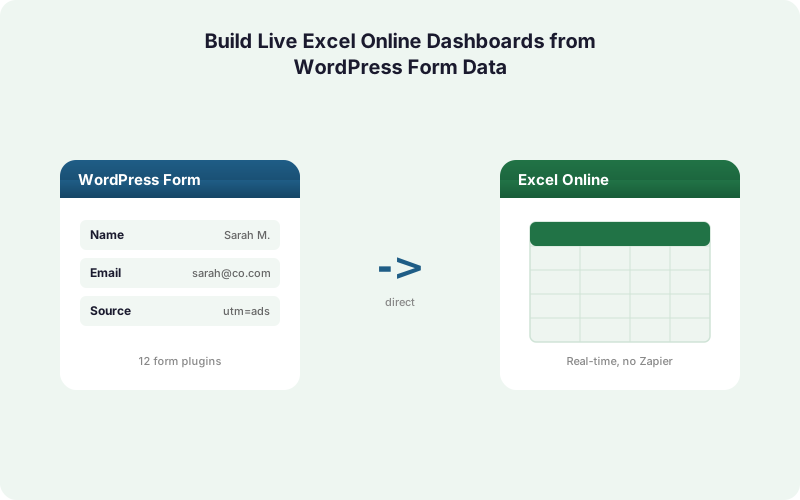
With Excel Online delivery through Microsoft Graph, each WordPress form submission writes a row into a OneDrive workbook in real time. Your PivotTables and charts sit on top of that table and refresh on demand. No upload step, no stale snapshot.
How Does Real-Time Delivery Beat a CSV-Fed Dashboard?
A CSV-fed dashboard is stale the instant you build it. Every new lead means a fresh export and a manual paste, and that's exactly where errors creep in. Research found up to 88% of audited spreadsheets contain errors (Panko, 2016), many from copy-paste and manual entry.
Real-time delivery removes the human step entirely. When a visitor submits your contact or demo form, the row lands in the workbook table within seconds. The dashboard reflects today's pipeline, not last week's export.
There's a quieter benefit too. In our experience, the biggest reason dashboards get abandoned isn't the charts, it's the refresh chore. Once nobody has to re-export, people actually trust the numbers and keep looking. A live table that updates itself turns a one-time report into a tool the team checks daily.
For a deeper comparison of the two destinations, see Excel Online vs Google Sheets for form data.
How Does Form Data Reach Excel Online Without Zapier or CSV?
SheetLink Forms talks to Excel Online directly through the Microsoft Graph API. No Zapier, no Power Automate, no CSV. The WordPress-to-Excel destination authenticates once via OAuth, then appends each submission as a new row in a named table on your OneDrive.
This matters because the alternatives meter and gate you. Zapier charges per task, with Free capped at 100 tasks/month and Professional from $29.99 monthly for 750 tasks (Zapier, 2026). Power Automate began enforcing premium-connector licensing on April 1, 2025 (Microsoft Learn, 2025), with documented per-flow run limits.
A direct integration sidesteps both. Submissions write straight to the workbook table, the structure PivotTables and charts depend on. You get a flat-fee path instead of per-task billing or premium-connector enforcement.
Walk through the connection in our Excel Online setup guide.
How Should You Structure the Table for PivotTables?
A PivotTable is only as good as the table feeding it. The single most important step is delivering submissions into a proper Excel Table object (Insert > Table), not a loose range. Tables auto-expand as rows arrive, so your PivotTable source grows without you touching the range reference.
Keep the layout tidy. One row per submission, one column per field, a header row with clear names, and no blank rows or merged cells. Excel's own guidance is that clean, normalized data drives reliable pivots, and clean input also cuts the error rate that plagues audited spreadsheets at roughly 3.9% per cell (Panko, 2008).
Map your form fields deliberately. Name, email, source, value, and a timestamp column give you everything a sales pivot needs. Add a captured UTM or click-ID column and you can pivot conversions by campaign. SheetLink captures GCLID, fbclid, and msclkid automatically, so attribution data flows in alongside the form fields. More on that in UTM and click-ID attribution for forms.
How Do You Build the PivotTables and Charts?
Once submissions land in a named table, the dashboard is standard Excel. Select the table, choose Insert > PivotTable, and Excel offers the table as the source. With 400M+ M365 seats in use (Microsoft FY2024, 2024), this is a skill most teams already have.
Start with the pivots that answer real questions. Submissions by day shows volume trends. Submissions by source or campaign shows which channels convert. Sum of deal value by owner shows pipeline distribution. Each pivot becomes a PivotChart with one click.
Layer in PivotCharts and slicers for an interactive feel. A slicer on the source column lets a sales manager filter the whole dashboard to one campaign in a click. Conditional formatting on the lead-value column highlights your hottest rows.
If you'd rather build the same view in Google's ecosystem, the patterns carry over: see Google Sheets dashboards for lead data.
How Does the Dashboard Refresh When New Submissions Land?
New rows appear in the table automatically; PivotTables and charts update on refresh. Because each submission writes directly into the workbook, the underlying table is always current. The pivots layered on top need a refresh to recalculate, which is one click (PivotTable Analyze > Refresh) or automatic on file open.
There are three refresh behaviors worth knowing. The table itself updates in real time as SheetLink appends rows. PivotTables refresh on demand or when the workbook opens. Power Query connections can be set to refresh on a schedule or on open, pulling the latest table data into a cleaned query.
A useful pattern we've found: set the workbook's data connections to refresh on open, then set the PivotTables to refresh on connection refresh. Now anyone who opens the file sees today's numbers without clicking anything. Combined with real-time row delivery, the dashboard is effectively self-updating.
The workbook stays current because the data path never sleeps. SheetLink's delivery engine appends rows as fast as forms submit them.
When Should You Add Power Query to the Pipeline?
Power Query is the right tool when raw submissions need cleaning before they hit a chart. It sits between the delivered table and your PivotTables, transforming data with steps that re-run on every refresh. Given that audited spreadsheets show error rates near 88% of files containing mistakes (Panko, 2016), automated, repeatable transforms are far safer than manual edits.
Typical Power Query steps for form data: split a full-name column, normalize email case, parse a UTM string into separate campaign and medium columns, or filter out spam submissions by domain. Each step is recorded once and applied automatically to every future row.
The payoff is consistency. Because the query re-runs on refresh, new submissions get the same cleaning the old ones did. You're not eyeballing each batch. For high-volume forms where data hygiene matters, this turns a messy raw feed into a dashboard-ready table without ongoing manual work.
Can You Send to Both Excel and Google Sheets at Once?
Yes. SheetLink's free mirror mode delivers a single submission to Google Sheets and Excel Online simultaneously, no extra cost. Many teams keep Sheets as the live operational log and use Excel for the polished PivotTable dashboard that leadership reviews. With 58% of finance leaders favoring Excel (Rossum, 2024), that split fits how most orgs actually work.
Mirroring is genuinely free, it costs nothing beyond the core license. If you'd rather drop Google entirely and write Excel as the sole destination with no Google account involved, the Excel Primary add-on handles that for $29/month or inside the agency bundles.
Why run both? Sheets shines for shared, always-open team logs and quick filtering. Excel shines for PivotTables, slicers, and the kind of formatted report executives expect. Mirror mode lets you stop choosing. The same form data powers a working sheet and a presentation-grade dashboard at the same time.
What Happens If the Workbook Is Unavailable?
Delivery never silently drops a lead. SheetLink runs a built-in retry queue with exponential backoff at 5 minutes, 30 minutes, and 2 hours. If OneDrive or Microsoft Graph is briefly unreachable, the submission sits in the local queue and retries until it lands, then your dashboard catches up automatically.
This is a real difference from polled middleware. Per-task tools like Zapier meter every action and cap free usage at 100 tasks/month (Zapier, 2026), and a failed run can mean a lost record unless you configure error handling yourself. A direct plugin with a local queue protects the data path by default.
Full delivery logs show exactly what was sent and when, so you can audit any gap. For agencies juggling many client workbooks, that visibility matters: see SheetLink for agencies for the multi-site view. The dashboard stays trustworthy because nothing falls through the cracks between form and workbook.
How Do You Get Started?
Setup takes minutes, not a migration. WordPress powers about 43% of all websites (W3Techs, 2026), and SheetLink works across 12 major form plugins out of the box, 17 with the Integrations Bundle. Whatever form tool you run, the path to Excel is the same three steps.
First, connect Excel Online via OAuth and pick a OneDrive workbook. Second, map your form fields to columns and confirm submissions write into a named table. Third, build your PivotTables and charts on that table, then set refresh-on-open.
From there the dashboard maintains itself. New submissions append in real time, refresh keeps the pivots current, and Power Query cleans the feed if you need it. Check the pricing page for the right tier, or browse the full add-on lineup if you want lead scoring or analytics layered on top of the same data.
| Capability | CSV-Fed Dashboard | Live SheetLink Delivery |
|---|---|---|
| Data freshness | Stale after each export | Current within seconds |
| Manual steps per update | Export, paste, rebuild | None - rows auto-append |
| Error exposure | High (copy-paste) | Low (no manual entry) |
| PivotTable source | Reset range each time | Auto-expanding table |
| Refresh model | Re-import the file | Refresh on open / on demand |
Frequently Asked Questions
Does the Excel dashboard update automatically as forms submit?
The underlying table updates in real time as SheetLink appends each submission through Microsoft Graph. PivotTables and charts on top need a refresh, which can be one click or set to run automatically when the workbook opens. So the data is always current, the visuals refresh on demand.
Do I need Zapier or Power Automate to connect forms to Excel Online?
No. SheetLink delivers directly through the Microsoft Graph API, no middleware. That avoids Zapier's per-task metering, capped at 100 tasks per month on Free (Zapier, 2026), and Power Automate's premium-connector licensing enforced since April 1, 2025 (Microsoft Learn, 2025).
How should I structure the table so PivotTables work?
Deliver submissions into a proper Excel Table object with one row per submission, one column per field, and a clean header row. Tables auto-expand as rows arrive, so your PivotTable source grows automatically. Clean input also lowers errors, which affect up to 88% of audited spreadsheets (Panko, 2016).
Can I send the same submission to both Excel and Google Sheets?
Yes, free. SheetLink's mirror mode writes one submission to Google Sheets and Excel Online at the same time at no extra cost. Many teams keep Sheets as a live operational log and use Excel for the formatted PivotTable dashboard that leadership reviews.
What is Power Query for and do I need it?
Power Query cleans and reshapes raw submissions before they reach a chart, with steps that re-run on every refresh. Use it to split names, normalize emails, or parse UTM strings. It's optional, but valuable for high-volume forms where consistent data hygiene matters across every new row.
What happens if OneDrive is temporarily unavailable?
Submissions are never dropped. SheetLink's retry queue uses exponential backoff at 5 minutes, 30 minutes, and 2 hours, holding the record locally until delivery succeeds. The dashboard then catches up automatically. Full delivery logs let you audit exactly what was sent and when.
Which WordPress form plugins does this work with?
SheetLink supports 12 major form plugins out of the box, including Elementor Pro, Contact Form 7, Gravity Forms, WPForms, and Fluent Forms, and 17 with the Integrations Bundle. Given WordPress powers about 43% of all websites (W3Techs, 2026), most sites are already covered.
Can I track campaign performance in the dashboard?
Yes. SheetLink automatically captures UTM parameters plus GCLID, fbclid, and msclkid alongside each submission. Map those into columns and you can pivot conversions by campaign or source. That turns a lead log into a marketing attribution dashboard without any extra tracking setup.
Turn Form Data Into a Live Excel Dashboard
SheetLink Forms writes every WordPress submission straight into your OneDrive workbook in real time. No Zapier, no CSV, no per-task fees. Your PivotTables stay current on their own.