
WooCommerce Orders in Google Sheets, Built for Accountants
Pipe completed orders, refunds, and subscription renewals from WooCommerce into a structured Google Sheet your accountant can reconcile. Skip the month-end CSV scramble and the double-entry into QuickBooks or Xero.
In This Guide
- The Month-End CSV Problem
- The 14-Column Accountant-Friendly Schema
- Which WooCommerce Events Should Fire?
- Routing Each Event to Its Own Tab
- Capturing Tax Lines Cleanly
- Handling Multi-Currency Stores
- How Should Refunds Flow Through the Sheet?
- Subscription Renewals: New Rows, Not Updates
- How Does the Accountant Actually Use the Sheet?
- GDPR and Customer Data in Google Sheets
- Tax Time: Pivots, YTD Totals, and Filing
- Frequently Asked Questions
The Month-End CSV Problem
Most WooCommerce store owners hand their accountant a CSV export on the first of the month. The CSV is missing the tax breakdown, mixes refunds with sales, and ignores subscription renewals entirely. The accountant then spends hours rebuilding the picture inside QuickBooks Online, Xero, or a spreadsheet of their own.
The friction stacks up fast. Currency columns are inconsistent. Refunds appear as negative line items mid-month but the original order sits in last month's export. Coupons get bundled into the subtotal. Subscription renewals from WooCommerce Subscriptions live in a totally separate report. By the time your bookkeeper has cleaned the data, half a workday is gone.
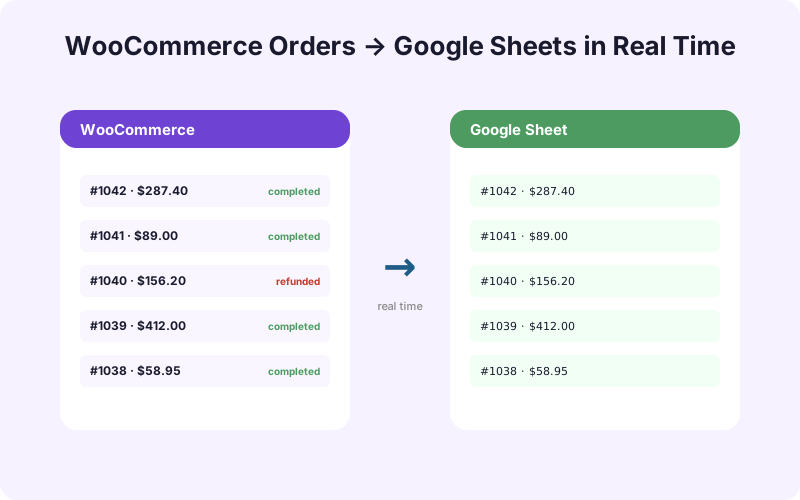
A live Google Sheet fixes this. Every completed order, refund, and renewal lands in the workbook the moment it happens. Your accountant opens the same file all month long and reconciles in minutes, not hours. The WooCommerce + Google Sheets integration we'll build below skips CSV exports completely.
The 14-Column Accountant-Friendly Schema
Before you wire up any hooks, agree on the column layout with whoever does your books. Below is a schema that maps cleanly to QuickBooks Online, Xero, FreshBooks, and Wave. It captures everything a CPA needs to file sales tax, post revenue, and audit refunds without bouncing back to WooCommerce.
order_id- the WooCommerce order number, used as the audit key.order_date- ISO 8601 timestamp, store timezone.customer_email- for matching repeat buyers and GDPR requests.billing_country- drives sales tax nexus and VAT logic.billing_state- required for US destination-based tax.subtotal- line items before tax, shipping, and discounts.discount_total- coupon and promo deductions.shipping_total- shipping charged, separated from product revenue.tax_total- aggregate tax for the order.order_total- what the customer actually paid.currency- three-letter ISO code (USD, EUR, GBP).payment_method- Stripe, PayPal, manual, etc.order_status- completed, refunded, on-hold.product_skus- pipe-separated SKUs for cost-of-goods lookups.
Add a 15th column called net_revenue with an =ARRAYFORMULA() that subtracts refunds. Your accountant will thank you.
Which WooCommerce Events Should Fire?
Four WooCommerce events drive a clean accounting feed. If you only listen to one, you'll miss revenue. Wire up all four, and the workbook reconciles to the penny against your payment processor.
The first is woocommerce_order_status_completed. This fires when an order moves to completed and is the canonical revenue event. The second is woocommerce_order_status_refunded, which fires on full refunds. Partial refunds need woocommerce_order_partially_refunded, which we'll route to the same Refunds tab.
The third event is woocommerce_subscription_renewal_payment_complete, exposed by the WooCommerce Subscriptions plugin. Renewals create new orders behind the scenes, but they also update billing schedules, so the renewal hook is the cleanest signal. The fourth is woocommerce_created_customer, which captures new customer accounts for the Customers tab and helps your CPA cross-reference repeat buyers.
SheetLink Forms wraps these in three named hooks inside the WooCommerce Sync add-on: order_created, order_completed, and order_refunded. You bind each one to a tab in the workbook through the admin UI. Subscriptions and customer creation are toggled on the same screen, no code required.
Routing Each Event to Its Own Tab
One workbook, four tabs. Trying to dump every event into a single sheet creates filter chaos for your accountant. The clean pattern is one tab per event type, with a shared order_id column that lets pivot tables join the data later.
Orders tab
Bound to order_completed. Uses the full 14-column schema above. This is the primary revenue tab and feeds your monthly P&L.
Refunds tab
Bound to order_refunded and woocommerce_order_partially_refunded. Captures order_id, refund_date, refund_amount, refund_reason, original_order_total, and currency. Refunds stay separate so the audit trail survives. Never delete or modify the original Orders row.
Renewals tab
Bound to woocommerce_subscription_renewal_payment_complete. Same schema as Orders plus subscription_id and renewal_count. This makes MRR and churn analysis trivial.
Customers tab
Bound to order_created for first-time buyers. Captures customer_id, email, signup_date, billing_country, and lifetime_value as a formula. Useful for marketing attribution and GDPR lookups.
The WooCommerce sync docs walk through binding hooks to tabs in the SheetLink admin screen. Each tab is a separate sheet config under the same workbook ID.
Capturing Tax Lines Cleanly
Sales tax is where most accountant feeds fall apart. WooCommerce stores tax in two places: a flat order_tax total and a child set of tax line items, one per rate. A US store charging state plus county tax will have two tax lines per order. A UK store with reduced-rate VAT will have one or two as well.
For most stores, tax_total on the Orders tab is enough. Pair it with billing_country and billing_state, and your accountant can group by jurisdiction with a pivot table. This works for any store with a single tax rate per order, which is the majority of small WooCommerce shops.
If your store charges multi-line tax, like NYC's combined state and city rates, add a second tab called Tax Lines. Bind it to order_completed and write one row per tax line item with order_id, rate_label, rate_percent, and tax_amount. The Orders tab still shows the aggregate; the Tax Lines tab gives your CPA the breakdown for sales tax filings. Your bookkeeper can then run a SUMIF by jurisdiction at the end of each quarter without touching WooCommerce reports.
Handling Multi-Currency Stores
Multi-currency WooCommerce stores break a lot of accountant feeds because the spreadsheet ends up mixing dollars, euros, and pounds in the same column. The fix is to record the per-row currency, then add a base-currency conversion column the accountant uses for the actual P&L.
Always populate the currency column with the three-letter ISO code from the order. Store the totals in the original currency, exactly as the customer paid. Don't try to convert at write time, you'll lose the source-of-truth for refunds and chargebacks.
Then add three calculated columns: fx_rate, base_currency, and order_total_base. Pull the FX rate from =GOOGLEFINANCE("CURRENCY:"&C2&"USD", "close", A2) using the order date, where C2 is the currency column and A2 is the date. This locks in the historical rate at the time of sale, which is what your accountant needs for accurate revenue recognition.
One gotcha: GOOGLEFINANCE returns business-day rates only, so weekend orders need a IFERROR wrapper that falls back to the next available rate. The WooCommerce + Google Sheets integration docs include a copy-paste formula that handles this edge case.
How Should Refunds Flow Through the Sheet?
Refunds need their own row, not an edit to the original order. This is non-negotiable from an audit perspective. If your accountant ever needs to defend a sales tax filing, they need to show that the original revenue was recorded, then later reduced by a refund event with its own date and reason.
The order_refunded hook fires when a refund is processed. Route it to the Refunds tab with these fields: order_id, refund_date, refund_amount (always positive), refund_reason, refunded_by, and currency. Keep the amount positive in the sheet. Sign conventions cause more bookkeeping bugs than any other field.
For net revenue, use this formula in column 15 of the Orders tab:
=ARRAYFORMULA(IF(A2:A="",,J2:J - IFERROR(VLOOKUP(A2:A, Refunds!A:C, 3, FALSE), 0)))
Column J is order_total, Refunds!A:C is order_id through refund_amount on the Refunds tab. The result is a per-order net revenue figure that updates automatically when a refund lands. Your accountant can then SUM net_revenue for the period and tie it directly to your bank deposits, less processor fees.
Subscription Renewals: New Rows, Not Updates
WooCommerce Subscriptions creates a new child order for every renewal, which is exactly the behavior you want for accounting. Each renewal is a separate revenue event with its own date and total. Don't try to consolidate them into the original subscription row, you'll lose the ability to compute MRR and churn.
Bind the Renewals tab to woocommerce_subscription_renewal_payment_complete. Each renewal writes a new row with the parent subscription ID, the renewal count (1, 2, 3...), and the standard order schema. Failed renewals fire woocommerce_subscription_payment_failed, which you can route to the same tab with order_status = failed if dunning matters to your books.
For MRR, add a pivot table that groups Renewals by month and currency, then SUMs order_total. New subscriptions from the Orders tab need to be added separately if you want a true MRR figure, since the first payment fires order_completed, not the renewal hook.
Heads up: if you offer free trials, the first "paid" event is the trial-end charge, which fires the renewal hook, not the order completion hook. Test this in staging before trusting the numbers.
How Does the Accountant Actually Use the Sheet?
The whole point is that your bookkeeper opens the workbook once and gets everything they need. Here's the typical month-end workflow with a live SheetLink-fed sheet.
- Filter Orders by date. The accountant filters
order_dateto the month being closed. They scan the totals. - Pivot by currency. A pivot table groups
order_total_baseby currency, giving a single base-currency revenue figure. - Reconcile against Stripe or PayPal. Sum the order totals, subtract refunds from the Refunds tab, compare to the processor's monthly statement. Differences are usually chargebacks or processor fees.
- Pull tax by jurisdiction. A pivot of
tax_totalbybilling_statefeeds the sales tax filing. - Export to QuickBooks or Xero. The Orders tab exports as CSV directly into QuickBooks Online's bank deposit screen, or into Xero's invoice import. Refunds become credit notes.
YTD totals live in a summary tab with =SUMIFS() formulas referencing the Orders and Refunds tabs. The accountant never has to ask you for an export again. For stores running multiple WooCommerce instances, the Integrations Bundle consolidates several stores into one workbook.
GDPR and Customer Data in Google Sheets
Putting customer emails and billing addresses in a Google Sheet makes Google a data processor under GDPR. This is fine, Google has a standard Data Processing Addendum that covers Workspace, but you need to handle erasure requests properly.
When a customer requests deletion, you must scrub their PII from the Customers, Orders, Refunds, and Renewals tabs. The cleanest pattern is a script-bound menu item that finds all rows by customer_email and replaces the email, billing name, and address fields with [redacted] while preserving the financial columns. You can't delete the rows entirely, your tax records still need them.
Document the workflow in your privacy policy: which fields are stored in Sheets, the legal basis (legitimate interest for accounting), the retention period (typically seven years for tax records), and the redaction process. SheetLink Forms ships a built-in GDPR redaction action you can trigger from the WordPress admin, which writes back to the connected sheet via the API. No manual scrub required.
For EU stores, also confirm your Google Workspace data region is set to EU. This keeps customer data inside European servers and simplifies your DPA conversations with auditors.
Tax Time: Pivots, YTD Totals, and Filing
By December 31, the workbook is your tax-prep starting point. A few standing pivot tables turn the raw event log into the totals your accountant or filing software needs.
Build a Summary tab with these blocks:
- Revenue by month: pivot Orders on
MONTH(order_date), sumorder_total_base. - Refunds by month: same pivot on Refunds tab. Net revenue = Revenue - Refunds.
- Sales tax collected by jurisdiction: pivot Orders on
billing_state, sumtax_total. This is your sales tax liability by state. - MRR by month: pivot Renewals on month, sum
order_total. Add new-subscription revenue from Orders for true MRR. - Top SKUs by revenue: pivot on
product_skus, sumsubtotal. Useful for inventory planning.
For the IRS Schedule C or the UK self-assessment, your accountant pulls a single number off the Summary tab. For sales tax filings (whether that's TaxJar, Avalara, or manual state portals), the jurisdiction pivot maps directly to the filing forms. No reformatting, no last-minute exports. The WooCommerce Sync add-on keeps the feed live all year, so the December workbook is just the January workbook with twelve months of data instead of one.
Frequently Asked Questions
Does this replace QuickBooks, Xero, or my accounting software?
No. The Google Sheet is the source feed your accountant uses to post entries into QuickBooks Online, Xero, FreshBooks, or Wave. It replaces the manual CSV export step, not the accounting ledger itself. Your CPA still does double-entry posting, journal entries, and tax filings inside their preferred tool.
How are subscription renewals handled in the sheet?
Each renewal writes a new row to the Renewals tab via the woocommerce_subscription_renewal_payment_complete hook. The original subscription stays on the Orders tab. Renewals carry the parent subscription ID and a renewal count, which makes MRR and churn pivots straightforward. Failed renewal payments can be routed to the same tab with a status flag.
What happens when a customer requests GDPR erasure?
SheetLink Forms ships a redaction action you trigger from the WordPress admin. It scrubs the customer's email, name, and billing address from every connected sheet tab, replacing them with [redacted]. Financial columns are preserved because tax law requires you to keep the records, typically for seven years. The workflow should be documented in your privacy policy.
Can I capture multi-line tax detail for complex jurisdictions?
Yes. Add a Tax Lines tab bound to order_completed that writes one row per tax line item with order_id, rate_label, rate_percent, and tax_amount. The Orders tab keeps the aggregate tax_total; Tax Lines gives your accountant the breakdown for NYC combined rates, UK reduced VAT, or destination-based tax.
Can I consolidate multiple WooCommerce stores into one workbook?
Yes, with the Integrations Bundle add-on. Each store writes to its own tab prefix (Store1_Orders, Store2_Orders, etc.) inside the same workbook. A consolidated Summary tab uses =QUERY() or ={Store1_Orders!A:O; Store2_Orders!A:O} array literals to merge the data. Useful for multi-brand operators or franchise structures.
How do partial refunds appear in the sheet?
Partial refunds fire woocommerce_order_partially_refunded, which is routed to the Refunds tab alongside full refunds. The original Orders row is never modified. The refund_amount column reflects the partial amount, and the net revenue formula on the Orders tab automatically accounts for it via VLOOKUP.
How are refunds attributed to the original order?
Every Refunds row carries the original order_id as the foreign key. Your accountant uses VLOOKUP or QUERY to join refunds back to the source order. This preserves the audit trail and lets sales tax filings correctly reduce taxable revenue in the period the refund happened, not the period of the original sale.
Does this work for downloadable or virtual products too?
Yes. Downloadable and virtual products fire the same woocommerce_order_status_completed hook as physical goods. The schema doesn't change. The only difference is shipping_total will be zero, which makes pivot tables for shipping revenue cleaner. Subscription-based digital products use the renewal hook described above.
Can I push this data directly into QuickBooks Online instead?
The Google Sheet is the intermediary. Most accountants prefer it because they can review and adjust before posting. From the sheet, QuickBooks Online accepts CSV imports for sales receipts and bank deposits. Xero accepts invoice imports. If you want direct API posting to QuickBooks, that's a separate integration, the sheet workflow stays accountant-controlled.
What happens to the data if I close the WooCommerce store?
The Google Sheet is yours and remains in your Google Drive even after the store closes. SheetLink Forms only writes to the sheet, it never owns or stores your data. Your accountant keeps using the workbook for tax filings during the retention period, typically seven years, with no dependency on WooCommerce or your hosting.
Stream WooCommerce Orders Live to Sheets
The WooCommerce Sync add-on is $29/mo and connects orders, refunds, and subscription renewals to a structured Google Sheet your accountant can reconcile. Check our lifetime pricing for one-time options.