
Multi-Step Elementor Forms in Google Sheets
Wire every step of an Elementor Pro multi-step form into Google Sheets, including the partial submissions users never finish. Skip the Zapier tax and own the pipeline end to end.
In This Guide
- How Elementor multi-step submissions actually fire
- How do you connect Elementor to Google Sheets with SheetLink?
- Why your field names break the moment marketing edits a label
- How do you capture partial form abandonment in Elementor?
- Routing finished and abandoned submissions to different sheets
- Multi-step inside multi-step and other edge cases
- Common errors and how to debug them
- Why non-blocking submission keeps your forms fast
- A real onboarding flow, end to end
- Frequently Asked Questions
How Elementor multi-step submissions actually fire
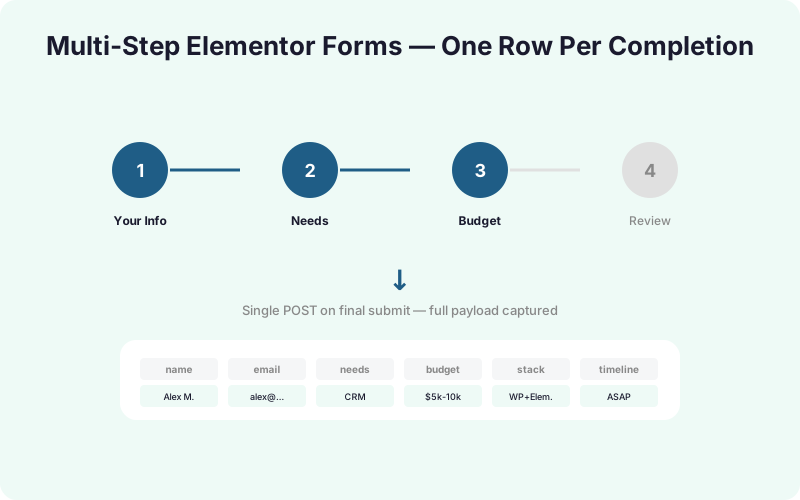
Elementor Pro multi-step forms only trigger one server-side action by default: elementor_pro/forms/new_record. That action fires once, on the final step, after the user clicks the submit button on the last page of the form. Every interim step before that is purely client-side. Elementor stores the values in a JS object and only POSTs the full payload when the user reaches the end.
This matters because most plugins that claim to capture multi-step data are really just hooking new_record and writing the final payload to a sheet. That works fine if the user finishes. It does nothing for the 40-60% of users who drop off mid-flow.
To capture partial submissions you need a second mechanism: a client-side hook on elementor_pro/forms/next-step that fires every time the user advances. We will wire that up later in the post. First, get the happy path working through SheetLink's Elementor Pro form integration guide so you have a known-good baseline before adding complexity.
How do you connect Elementor to Google Sheets with SheetLink?
The setup runs in three places: Google Sheets, the SheetLink Forms plugin, and the Elementor form widget. Plan on 10-15 minutes the first time, less once you have a template Apps Script deployed.
1. Deploy the Apps Script receiver
Open your target Google Sheet, then Extensions, then Apps Script. Paste the receiver script from the Apps Script setup guide, deploy it as a web app set to "Anyone" access, and copy the resulting /exec URL. That URL is the only thing the WordPress side needs.
2. Create a sync rule in SheetLink
In WP admin, go to SheetLink Forms, then Sync Rules, then Add New. Pick "Elementor Pro" as the source, pick the form by ID, paste the Apps Script URL, and save. SheetLink will auto-detect available fields after the next test submission.
3. Map fields
Drag fields from the left column (Elementor) to the right column (sheet headers). The mapper supports static defaults, basic transforms (lowercase, trim, hash), and a passthrough mode that dumps everything as JSON into a single column if you want the raw blob too.
Why your field names break the moment marketing edits a label
Elementor lets you set both a Label and a Field ID for every input. The Label is what users see. The Field ID is what gets posted to $_POST when the form submits. Most users leave the Field ID blank, in which case Elementor auto-generates something like field_a1b2c3.
That auto-generated ID is fragile. Delete the field and re-add it, you get a new random ID. Duplicate the form, same problem. SheetLink maps on Field ID by default because labels are not unique (you can have two fields both labeled "Email" in different steps).
The fix is to set explicit, semantic Field IDs the moment you build the form: email, company_name, step1_role. Treat them like database column names. Once mapped in SheetLink, you can rename the user-facing label freely without breaking the sync. We have seen teams lose two weeks of data because someone duplicated a form for a campaign and forgot the IDs reset, so this is not theoretical.
How do you capture partial form abandonment in Elementor?
Elementor exposes a JS event called elementor_pro/forms/next-step that fires every time the user clicks Next. Hook it, grab the current step's values, and ship them to a separate endpoint with navigator.sendBeacon() so the request survives even if the user closes the tab.
Drop this into a Custom HTML widget on the page or enqueue it via your theme:
jQuery(window).on('elementor/frontend/init', function() {
  elementorFrontend.hooks.addAction(
    'frontend/element_ready/form.default',
    function($form) {
      $form.on('submit_success', null);
      jQuery(document).on('elementor-pro/forms/next-step', function(e, data) {
        var payload = {
          form_id: data.form_id,
          step: data.current_step,
          fields: data.fields,
          session: localStorage.getItem('slf_session') || crypto.randomUUID(),
          ts: Date.now()
        };
        localStorage.setItem('slf_session', payload.session);
        var blob = new Blob(
          [JSON.stringify(payload)],
          { type: 'application/json' }
        );
        navigator.sendBeacon('/wp-json/sheetlink/v1/partial', blob);
      });
    }
  );
});
Two details that matter. First, sendBeacon is non-blocking and queues the request in the browser, so a slow Apps Script will not freeze the form. Second, the session ID lets you stitch step 1, step 2, and step 3 into a single row later, or detect which step they bailed on.
Routing finished and abandoned submissions to different sheets
Once you are capturing both new_record (completed) and next-step (partial) events, you need somewhere to put them. Dumping both into one sheet creates noise. The cleaner pattern is two tabs in the same spreadsheet, or two separate sheets entirely.
SheetLink's conditional routing handles this without code. Create one rule for completed submissions targeting Sheet1!Completed, and a second rule for partials targeting Sheet1!Abandoned. Add a condition like event_type == "partial" to the second rule and the router does the rest.
The Apps Script receiver should also be aware of the difference. A minimal handler:
function doPost(e) {
  var body = JSON.parse(e.postData.contents);
  var sheetName = body.event_type === 'partial'
    ? 'Abandoned'
    : 'Completed';
  var sheet = SpreadsheetApp
    .getActive()
    .getSheetByName(sheetName);
  sheet.appendRow([
    new Date(),
    body.session,
    body.step || 'final',
    JSON.stringify(body.fields)
  ]);
  return ContentService.createTextOutput('ok');
}
For teams running follow-up campaigns, the Integrations Bundle can fan the same payload to Mailchimp, HubSpot, or Slack in parallel. That removes the need for Zapier sitting in the middle.
Multi-step inside multi-step and other edge cases
Elementor does not natively support a nested form inside a step, but creative teams fake it with conditional visibility: step 2 reveals a sub-section based on a step 1 answer, and that sub-section has its own "continue" interaction. From SheetLink's perspective this still looks like a single form with three or four steps, so the next-step hook continues to work. The only quirk is that hidden fields still post their values, even if the user never saw them.
Conditional logic and hidden fields
If step 3 only shows when step 1 answer equals "Enterprise", the field still exists in the DOM. Elementor's conditional logic hides it visually but the value posts. You probably do not want empty Enterprise-only columns cluttering your sheet, so use SheetLink's per-field "skip if empty" toggle on those columns.
File uploads
File upload fields in multi-step forms only finalize on new_record, never on next-step. Do not try to capture them in partial submissions, you will get an empty string. Wait for the final submission and let SheetLink pass through the resulting attachment URL.
Common errors and how to debug them
Three issues account for roughly 80% of Elementor-to-Sheets support tickets we have seen. Walk through them in order before opening a deeper investigation.
- Empty fields in the sheet: almost always a Field ID mismatch. Open the form in Elementor, click each field, and confirm the Field ID matches what SheetLink shows in the mapper. If you renamed a field, re-run "Detect Fields" in the sync rule.
- Submissions reach WordPress but not the sheet: the Apps Script web app deployment is wrong. It must be deployed as a Web App (not just saved), with execution as "Me" and access as "Anyone". Re-deploy after every code change, the URL stays the same but the version increments.
- Conditional fields never appear in the sheet: they are likely hidden by Elementor conditional logic AND have "Submit empty values" disabled. Either flip that toggle or add the column on the SheetLink side with a static default.
Turn on SheetLink's debug log under Settings, then Logs, to see the exact JSON payload Elementor posted. That single screen resolves more issues than any documentation page.
Why non-blocking submission keeps your forms fast
Apps Script web apps cold-start. The first request after an idle period can take 2-4 seconds before Google warms the runtime. If your WordPress site posts to that URL synchronously inside the form submission flow, your users wait for that cold start before seeing the success screen. Some bounce.
SheetLink queues every outbound webhook in a background job using WordPress's action scheduler. The form returns success to the user the instant Elementor finishes its own validation, and the sheet write happens in a worker process within the next 60 seconds. If the Apps Script is down or slow, retries kick in automatically (default: 3 attempts with exponential backoff).
For high-traffic sites that need parallel writes to multiple endpoints, the Multi-Node Routing add-on spreads outbound jobs across separate worker queues so a slow Mailchimp endpoint cannot back up your Sheets writes. For a typical site doing under 5,000 submissions a month, the default queue handles it without tuning.
A real onboarding flow, end to end
Here is the setup we use internally for a four-step demo request form. Step 1 collects email and company. Step 2 asks team size and use case. Step 3 shows pricing-tier-relevant questions (conditional on step 2 answer). Step 4 confirms and submits.
The sheet has three tabs:
- Demo Requests: populated by
new_record. One row per completed submission, all 12 fields mapped explicitly. - In Progress: populated by
next-step. One row per step advance, keyed on session ID. Sales reviews this daily for warm leads who started but did not finish. - Audit: raw JSON dump of every payload, useful for debugging schema changes.
A Google Sheets formula in the Demo Requests tab reconciles against the In Progress tab and marks abandoned sessions as "recovered" once a matching email shows up as completed. That gives the team a single dashboard for completion rate by step, average time per step, and which step loses the most users. None of it requires Zapier, none of it leaks PII outside Google's infrastructure, and the whole stack runs on a one-time SheetLink license.
Frequently Asked Questions
Do I need Elementor Pro for this to work?
Yes. The free version of Elementor does not include the Form widget at all, and the multi-step feature is a Pro-only field type. SheetLink Forms hooks Elementor Pro's elementor_pro/forms/new_record action, which only exists in the paid plugin. There is no workaround using the free version.
Can users go back between steps without losing data?
Yes, Elementor preserves field values when users click Previous. The partial submission script we showed fires on Next, so going back and forward repeatedly will create multiple rows in the abandoned tab. Use the session ID to deduplicate, or only keep the most recent row per session ID using a Sheets formula.
How do I handle conditional fields that only show on certain steps?
Conditional fields still exist in the DOM, just hidden. Their values still post on the final submission. In SheetLink's mapper, mark conditional columns as "skip if empty" so you do not get blank cells when the field never applied. For step-level conditionals, the current_step value in the partial payload tells you which fields were actually visible.
How do you detect which step a user abandoned at?
The elementor_pro/forms/next-step event includes a current_step property. Each partial submission writes that value to the sheet. The last row in the abandoned tab matching a given session ID tells you the highest step they reached. If session X has rows for step 1, 2, and 3 but no new_record entry, they bailed on step 4.
Can I send Elementor submissions to MailerLite or HubSpot at the same time?
Yes, through multi-destination routing. The Integrations Bundle includes native connectors for MailerLite, HubSpot, ActiveCampaign, and Mailchimp. One submission can write to a Google Sheet and create a contact in your ESP in parallel. Failures on one route do not block the others, each runs in its own queued job with independent retry logic.
What about GDPR for partial submissions users never finish?
Partial captures collect data the user typed but never explicitly submitted, which is a gray area under GDPR. The safe approach is a clear notice on step 1 stating that progress is saved as the user advances, plus an automatic 30-day purge of the abandoned tab. SheetLink supports scheduled cleanup rules that delete rows older than N days from any specific tab.
Do file uploads work in multi-step forms?
Yes, but only on final submission. Elementor processes uploaded files when new_record fires, never during step transitions. The file URL appears in the completed sheet row but never in the abandoned tab. If a user uploads a file on step 2 and abandons on step 3, the file is discarded by Elementor. Plan your form order accordingly.
What Elementor Pro version is required?
Elementor Pro 3.5 or higher for the next-step JS event, and 3.10+ recommended for the more reliable elementor_pro/forms/new_record server hook. SheetLink Forms tests against the latest two minor releases of Elementor Pro on every plugin update, so staying current on Elementor avoids most compatibility surprises.
Ship Elementor to Sheets in 10 minutes
SheetLink Forms ships with Elementor Pro support, partial-submission capture, and conditional routing built in. One-time payment, see lifetime pricing for the current bundle.